
Learn Shopify theme customization step by step. Find out how to customize the Shopify theme, improve UX, and boost conversions without coding today for your store!

Shopify Theme Customization: A Complete Guide for Beginners and Experts (2026)
Table of Contents
What is Shopify Theme Customization?
Why It Matters
Customization Methods
Shopify Theme Structure
Step-by-Step Customization Guide
Advanced Customization
Best Practices
Common Mistakes
SEO Tips
FAQs
🔍 What is Shopify Theme Customization?
Shopify theme customization is the process of changing your store’s design, layout, and features to match your brand and make it easier for customers to shop. You can do this using tools or by writing code like Liquid, HTML, and CSS.
🎯 Why Shopify Theme Customization Matters
Customizing your Shopify theme is important because it can help your business.
When your store looks good and is easy to use, you can:
* Stand out from stores
* Sell more products
* Make sure customers can find what they need
* Make sure your store works on phones
⚙️ Shopify Theme Customization Methods
🟢 1. No-Code Customization
You can customize your store using Shopify’s built-in editor. This is great for beginners who don’t know how to code. You can:
* Change the sections on your homepage
* Change the fonts, colors, and layouts
* Customize the top and bottom of your store
* Change the way product pages look
🔵 2. Code-Based Customization
If you want control, you can edit your theme using:
* Liquid, which is a coding language for Shopify
* HTML, CSS, and JavaScript
* This way, you can make custom layouts show content and add advanced features
🧩 Understanding Shopify Theme Structure
Before you start editing code, you need to know how themes work. A theme has:
* A layout, which is the structure of the page
* Templates, which are designs for pages
* Sections, which are reusable parts of your store
* Snippets, which are small pieces of code you can reuse
* Assets, which are things like CSS, JavaScript, and images
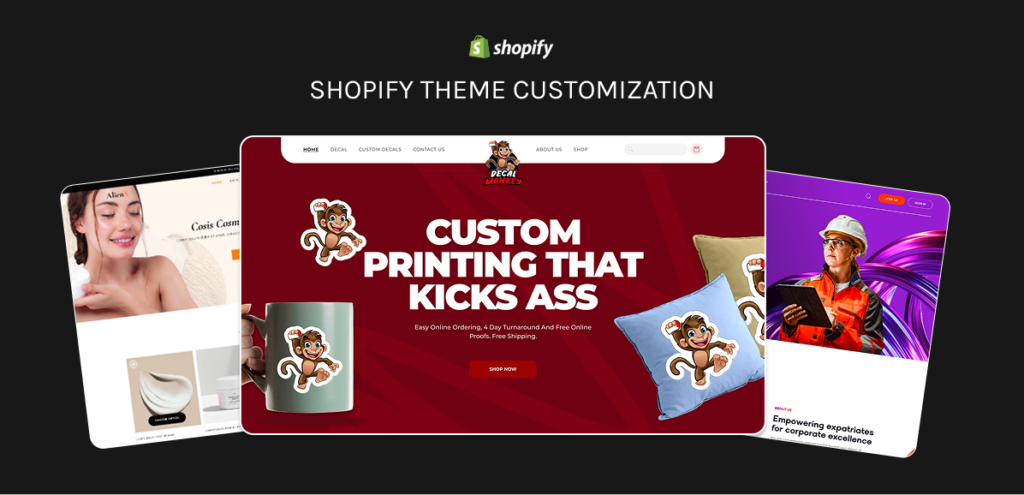
Step-by-Step Shopify Theme Customization
1. Choose a Theme
* Themes like Dawn are fast and easy to use
* Paid themes have features
2. Customize Your Brand
* Upload your logo
* Choose your brand colors
* Pick a font
3. Edit Homepage Sections
* Add a hero banner
* Show featured collections
* Add testimonials
* Add a call-to-action section
4. Optimize Product Pages
* Add high-quality images
* Write descriptions
* Include reviews and trust badges
5. Improve Navigation
* Make a menu
* Organize your categories in a logical way
🚀 Advanced Shopify Theme Customization
Once you’re good at the basics, you can:
* Create custom sections that you can reuse
* Use Liquid to show content and personalize the experience
* Create a custom theme from scratch using Shopify CLI
✅ Best Practices for Shopify Theme Customization
* Keep your design simple and clean
* Make sure your store works on phones
* Optimize your images and speed
* Keep your branding consistent
* Always test before publishing
❌ Common Mistakes to Avoid
* Changing a lot and making your store confusing
* Forgetting about the customer experience
* Not saving your theme
* Installing many apps
📈 SEO Tips for Shopify Theme Customization
To rank your store high in search results:
* Use headings
* Optimize images with alt text
* Make your store load fast
* Add links
* Use keywords
💡 Pro Tip
Start with simple changes and add more as you go. Many successful stores begin with customization and add more advanced features later.
🙋 FAQs
What’s the easiest way to customize a Shopify theme?
The easiest way is to use Shopify’s Theme Editor.
Do I need coding skills for Shopify customization?
No. Coding helps you unlock more features.
Can I create a Shopify theme from scratch?
Yes, using Shopify CLI and Liquid.
Is Shopify theme customization free?
Basic customization is free; advanced features may require apps or developers.
If you want a Shopify store that is totally made for you and helps you sell things
Contact us today, or you can start with the guides we made for people who are just starting to make their store look really good.
FAQ Schema (Add in HTML)
<scripttype=”application/ld+json”>
{
“@context”: “https://schema.org”,
“@type”: “FAQPage”,
“mainEntity”: [{
“@type”: “Question”,
“name”: “What’s the easiest way to customize a Shopify theme?”,
“acceptedAnswer“: {
“@type”: “Answer”,
“text”: “Using the Shopify Theme Editor is the easiest method for beginners.”
}
},{
“@type”: “Question”,
“name”: “Do I need coding skills for Shopify customization?”,
“acceptedAnswer”: {
“@type”: “Answer”,
“text”: “No, but coding helps unlock advanced features.”
}
},{
“@type”: “Question”,
“name”: “Can I create a Shopify theme from scratch?”,
“acceptedAnswer”: {
“@type”: “Answer”,
“text”: “Yes, using Shopify CLI and Liquid.”
}
},{
“@type”: “Question”,
“name”: “Is Shopify theme customization free?”,
“acceptedAnswer”: {
“@type”: “Answer”,
“text”: “Basic customization is free; advanced features may require apps or developers.”
}
}]
}
</script>